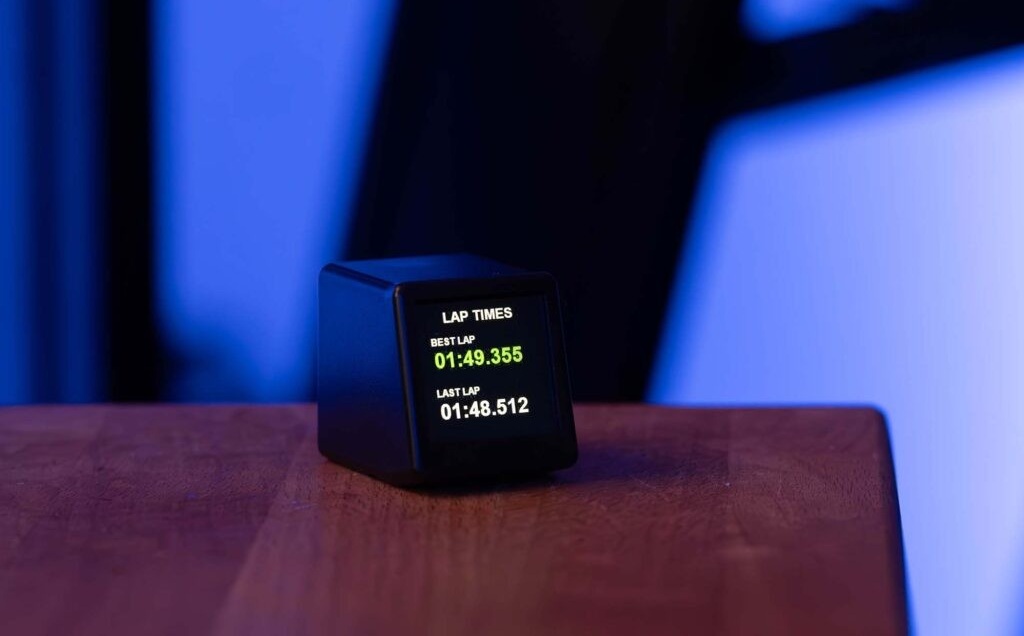
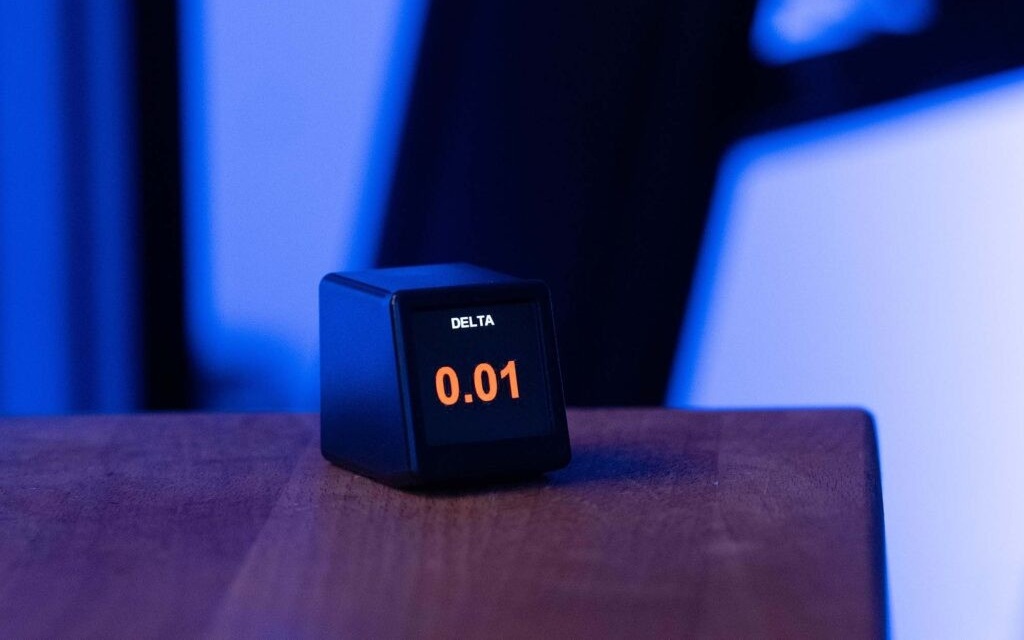
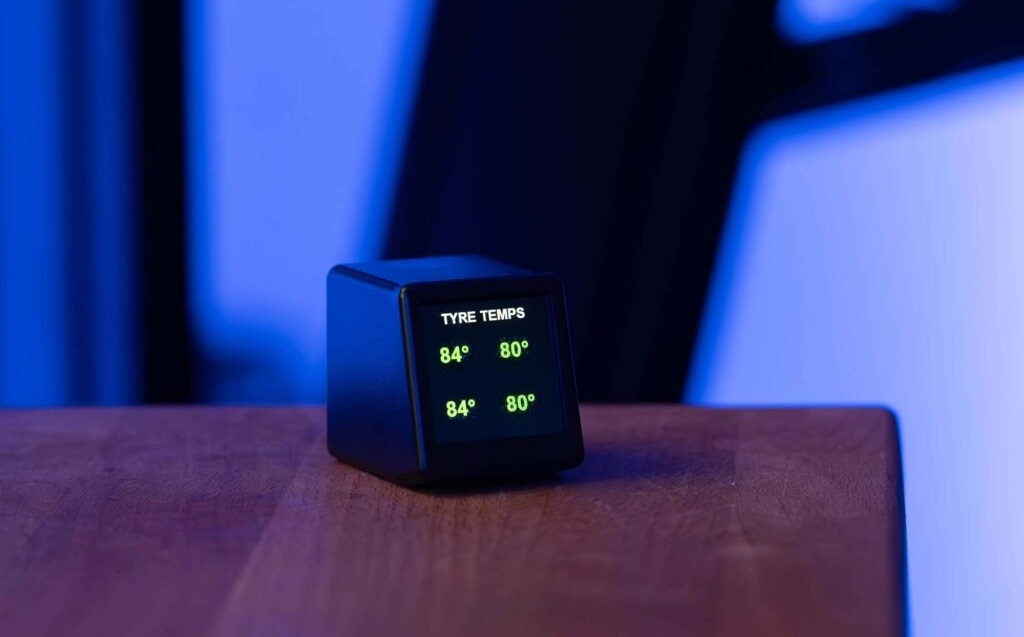
Dashboard 2" installation
The Dashboard 2" connects over Wi-Fi and runs on the SimHub software together with its dedicated plugin. Follow the 6 steps below to get it working in a few minutes.
The software SimHub is required to set up and use the Dashboard 2".
You will also need the AGRacing.fr plugin for SimHub.
The Dashboard 2" must be connected to the same 2.4 GHz Wi-Fi network as the PC running SimHub.
Download the AGRacing.fr plugin
Download the plugin that links SimHub to the Dashboard 2". It is available from the link below.
Connect the Dashboard 2" to Wi-Fi
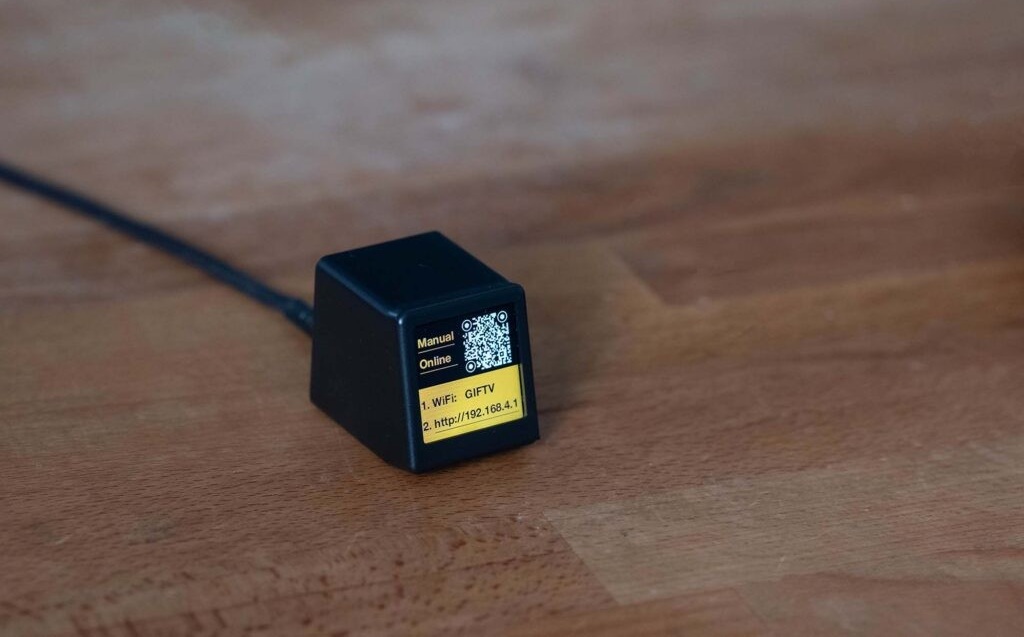
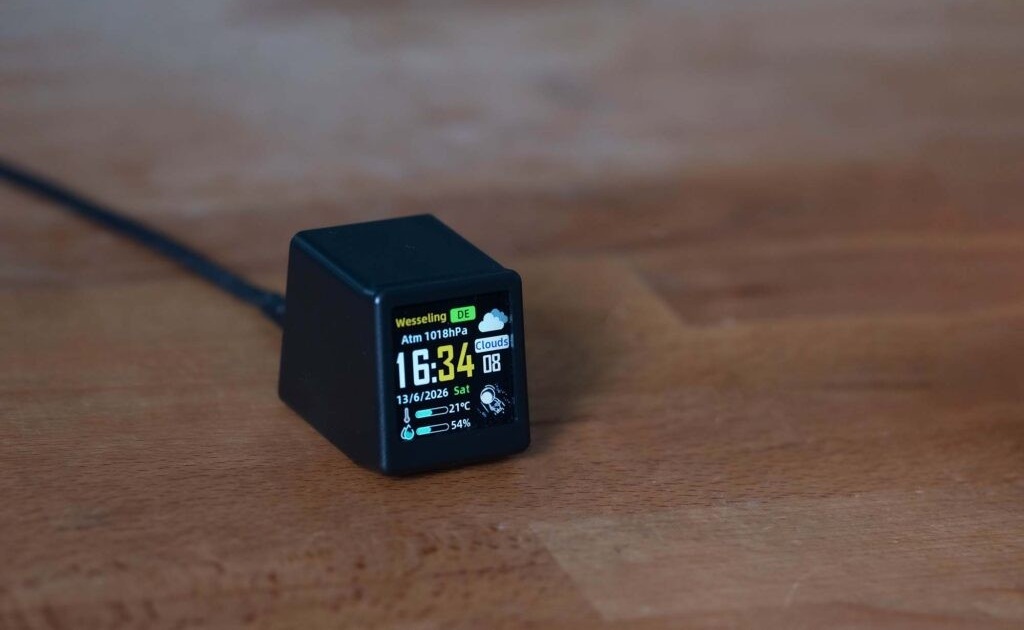
On first start-up, connect your phone or PC to the Wi-Fi network broadcast by the screen (name shown on the label on the back, e.g. “GIFTV”). Then open http://192.168.4.1 and enter your home 2.4 GHz Wi-Fi network — the one used by the SimHub PC. After a restart, the IP address assigned to the Dashboard 2" is shown directly on the screen: write it down.
Clear the image album
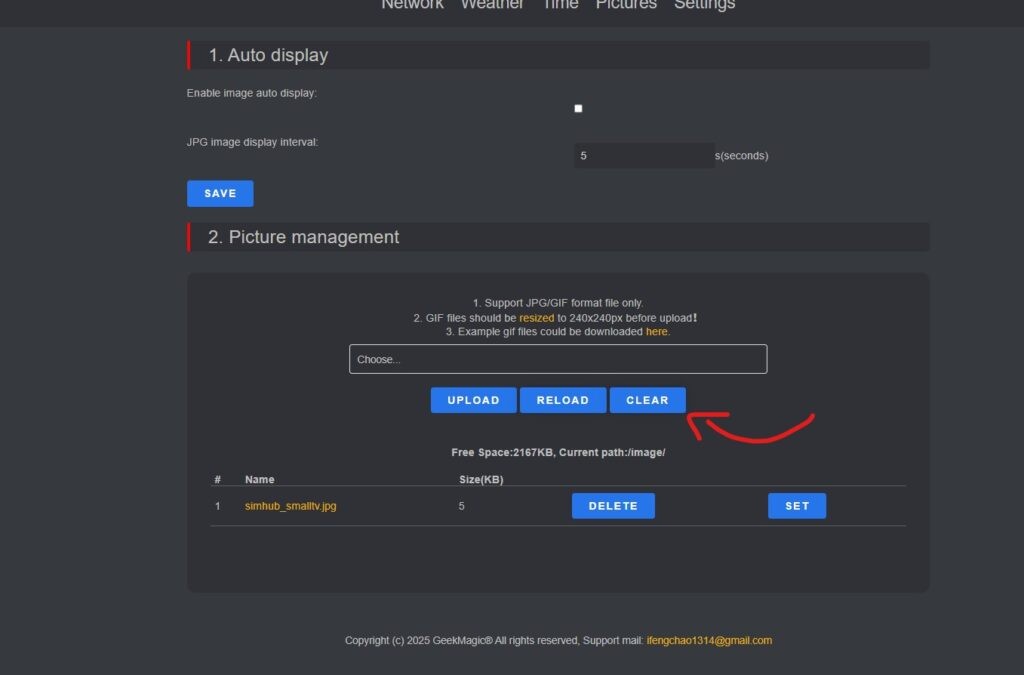
Enter the Dashboard 2"'s IP address in your browser to open its settings page. On the “Pictures” tab, click “Clear” to delete the images already stored, then untick “Enable image auto display” to turn off automatic playback.
Install the plugin in SimHub
Copy the AGRacing.SimHub.Plugin.dll file into the SimHub installation folder, usually C:\Program Files (x86)\SimHub. Open SimHub, go to “Add / Remove features”, enable “AGRacing.fr”, then restart SimHub.
Configure the plugin
In SimHub, open the “AGRacing.fr” tab (language picker at the top right): on the home page, click “Set up” under Dashboard 2". Enter the number of Dashboard 2" and the IP address of each, adjust brightness and themes if needed, then click “Sync settings and theme”. Each screen's status turns to “Connected”: the Dashboard 2" now shows SimHub data.

Customise the display (optional)
From the “AGRacing.fr” tab you can pick the page each display shows or cycle it with your wheel buttons, reorder or hide the pages (time, delta, tyre temperatures and pressures, fuel, TC / ABS, lap times, flags, session, gear, position), enable the spotter and flag bar, enter the driver's name and number for driver mode, and set the brightness as well as the active and idle themes.
Setup Complete
Your Dashboard 2" is now connected to SimHub and shows your race data in real time.
On-screen preview